
Samsung Galaxy S2 is the Samsung’s best phone smart phone till now. No doubt it is ruling the mobile world. I know most of the mobile lovers might be waiting for Galaxy S3 mainly for ICS 4.0. But recently there is an official ICS 4.0.3 update for Samsung Galaxy S2 but not in all countries. So without waiting for your country’s turn we can update it manually using Odin Flashing tool

What You need ?
To complete Samsung Galaxy s2 Rooting all you need is
Also Read: 5 Best Android tablets under $200
- Ice Cream Sandwich update for your mobile
- Odin rooting tool for Windows
Basic Things to Perform before Rooting Samsung Galaxy S2
Rooting removes everything from your Phones memory including your contacts, messages, applications etc. So there is an urgent need to backup all contacts, messages and everything if you think they are important for you. Also Remove Antivirus form your computer before rooting. Anti-virus may stop Rooting without any warning
Also Read: How to backup and Restore Apps, Messages, Contacts, Call log and Bookmarks in Android devices
Complete Guide for Rooting Samsung Galaxy S2
1. Download ICS update and extract all files to your desktop and you will get this file (ignore the second file)
- I9100XXLPQ_I9100H3GLP2_I9100NELP2_HOME.tar.md5
2. Now, Download Odin Rooting tool and install it on your computer
3. Charge your mobile Completely to be on safe side. If not possible charge it at least to 50% and switch off your mobile
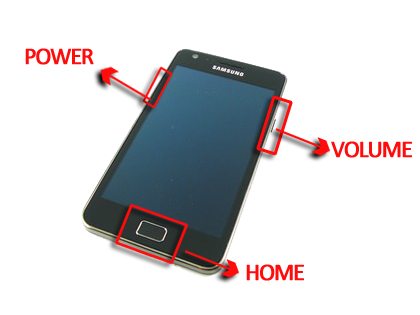
4. Now Press and hold Home, Power and Down Volume buttons. This will open your mobile in Download mode. Ignore the warning by pressing Volume up key.
5. Now Double Click on Download Odin rooting tool and connect your mobile to Computer via USB
6. You should see Added Notification in the Odin Message box. In general, you can check this notification on the Bottom left corner
Also Read: How to Root Samsung Galaxy Y S5360
7. Select I9100XXLPQ_I9100H3GLP2_I9100NELP2_HOME.tar.md5 by clicking PDA tab in Odin rooting tool. Double check that you have ticked Auto Reboot and F. Reset Time
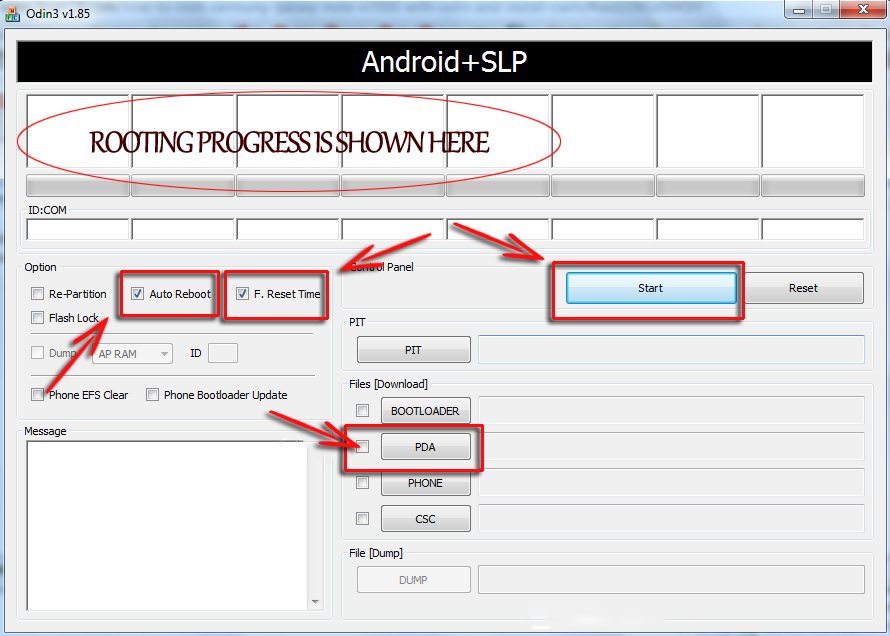
8. Click Flash Button in Odin and go for fresh air. Your computer would do the remaining steps.
9. If you see Samsung Logo on your mobile screen you can blindly disconnect your mobile.
10. That’s it !! have a huge blast, your phone will reboot automatically with Ice Cream Sandwich 4.0.3
Important
- Don’t unplug your Samsung Galaxy S2 from the computer while rooting
- If you feel Odin or your Mobile is Not Responding while rooting, Unplug your mobile, close Odin, Remove Phones Battery and re-insert it after 10 seconds. Pray to your god and continue from Step 4
- If Odin is unable to detect your mobile, try to update connectivity drivers
This Article is only to guide our readers and we are not responsible if anything goes wrong with your Samsung Galaxy S2. We will be with you always and try to solve your problem anytime

This piece of writing is genuinely a nice one it helps new net viewers,
who are wishing for blogging.