
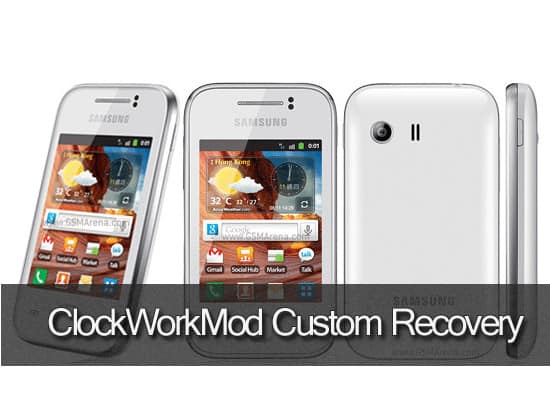
If you have rooted your Samsung Galaxy Y, then you can get even more control on your mobile by simply installing ClockWorkMod custom recovery on the rooted mobile. I’m repeating, ClockWorkMod custom recovery will work on if your mobile is already rooted. This is complete and detail guide to install ClockWorkMod Custom recovery in Samsung Galaxy Y.
Why installing ClockWorkMod Custom Recovery?
By installing ClockWorkMod Custome recovery, your mobile is enabled/capable of installing Custome ROM’s in it. If you proceed to install Custom ROM without installing ClockWorkMod recovery, you might end at Samsung S screen. I mean to say, mobile will become useless (Bricked mobile)
Before you Begin
- Rooting your mobile is mandatory. Never install CWM without rooting the device. Make use of our link -> How to root Samsung Galaxy Y
- Charge your mobile at-least up to 50% before installing ClockWorkMod recovery
- This install is not a permanent one, you have to install ClockWorkMod everytime while installing Custom ROM’s
How to Install ClockWorkMod on Samsung Galaxy Y
1. All you need for installing CWM is a CWM.zip file. Click the download button below for downloading required stuff.
2. Now connect your mobile using USB cable and copy the downloaded zip in the root folder of the Memory card, I mean to say not in any sub-folders.
3. Disconnect the device and switch if off.
4. Press and hold the Volume up button, Home button and Power button simultaneously and remove them all at once after the entry of Samsung logo screen.
5. Select the Apply update from SD card using Volume keys and press the home button to select the option.
6. Again using volume keys and home button, select the downloaded CWM.zip file from micro sd card.
Recommended: How to install Android Jellybean Custom ROM on Samsung Galaxy Y
After flashing zip file successfully, you can install any Custom ROM’s without bricking the mobile.

could not download zip it shows download is blocked plece update
Right man
links are not working please update this post thanks
I just tested the link and it worked. I’m not sure which link you are talking about.
hi the link is blocked.
“The file you attempted to download has been previously claimed by a copyright holder through a valid DMCA request and cannot be downloaded.
Still have questions, or think we’ve made a mistake? Please contact support for further assistance.:
Please help.. TQ
Download link is working fine at our end (http://www.mediafire.com/download/28ldd7dcgdizcu2/CWM+for+Galaxy+Y.zip)
please try again
any idea to riturn to gingerbread
try this one
https://geekdashboard.com/how-to-unbrickflash-samsung-galaxy-y-s5360/
link is blocked .help mee
Link updated. Check now
how we can we understand cwm is enabled after installation?
i upgrade into 4.4.2 , after installing my phone is not open , just shows the samsung logo… can u plz help me?
link blocked
Link is working fine at our end, Please try again
download linl blocked again
Links updated. Thanks for letting us know
hey tht clockworkmod download links been blocked again
Link updated. Check now
I have rooted my Galaxy Y, & installed the Kitkat 4.4 on it… but after successful operation, when I pressed the “reboot now” option for the final time, the screen is not turning up – i mean the screen just shows the Samsung screen. What can be the problem?
hey dat clockworkmod download link has been blocked…
please help
Thanks Swaroop for noticing…we have updated the link, you can proceed now
how could i know that the clockworkmod is instlled on my phone