
Why I prefer Windows Live Writer?
Fortunately or unfortunately, I have been using Windows Live Writer since the very beginning. You may wonder why I said ‘Fortunately’ because I found using WLW better than using the WordPress dashboard. I also said ‘unfortunately’ because I have missed the experience of using WordPress dashboard to write my posts. I always found WP dashboard messy since I never tried. After writing almost 35 posts for my two blogs using Windows Live Writer, I realized that WLW gives you a chance to write your posts with ease. Here is how.
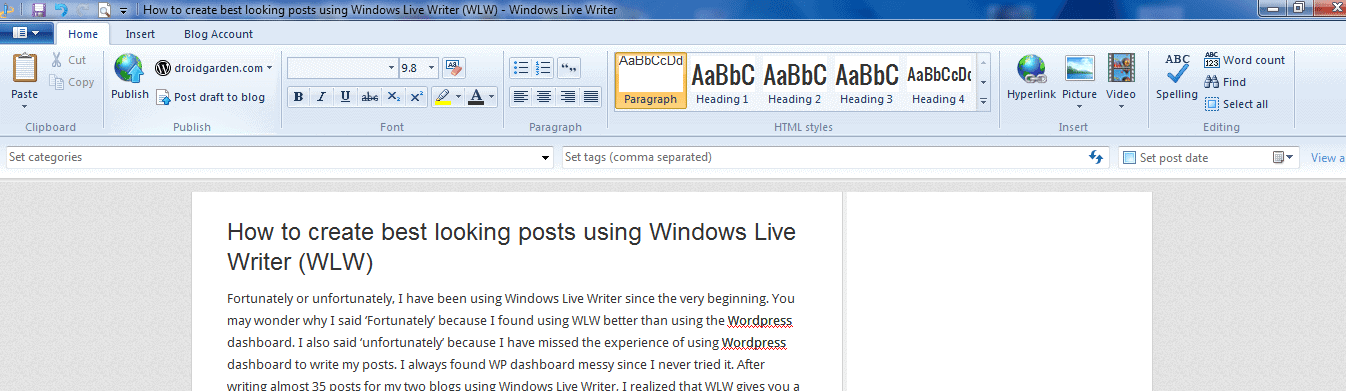
The User Interface of Windows Live Writer:
The User Interface is very Simple. All the necessary tools are within easy reach. After linking your blog to Windows Live Writer, you can see the home tab with several options. Just like any Mircrosoft word Application, you have ‘Formatting options’. You even have H1, H2, H3 options. Once you are on the ‘Insert’ Tab, You get to see several options. You can insert a ‘horizontal line’ ‘clear break’, and you can even split post.
Insert options:
Inserting a table has never been easier before. You can drag around the columns and rows to suit your needs. It also enables you to select the border width of the table. You can insert a hyperlink to any pages on your blog or another site. You can insert a picture from your computer. It also allows you to create an album and insert it into your post. There is video insertion available too. You can even add the location (a bit advanced though). You have a bunch of useful emoticons too. look at the following screenshot.
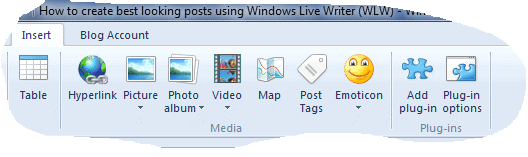
You can even add the location (a bit advanced though). You have a bunch of useful emoticons too. look at the following screenshot.
Formatting a picture:
Formatting a picture you have taken is done easily with Windows Live Writer. Once you have inserted a picture, click on the picture once and the ‘Format’ tab appears in the Menu bar. From this ‘Format’ tab, you can select different styles for your picture as shown below:
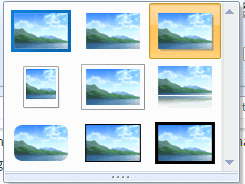
It’s not just that. You can add diferent picture effects like, ‘recolor’, ‘sharpen’, ‘blur effect’ and emboss’ as shown below.
Sometimes, you may need to have text around or beside a picture. It’s usually a bit difficult to do using WP Dashboard, especially for beginners. But with WLW, it’s as easy as saying ABC. You can easily wrap the text around any picture. Check out the screenshot below.

Create SEO friendly posts with Windows Live Writer
You can create SEO friendly posts easily using Windows Live Writer. You can set ALT Tag to your picture, ‘Alt text’ option. To do this, click on any picture you have inserted and go to ‘Format’ tab and select ‘Alt Text’ from there. Type in your article ‘key words’ and click ‘OK’. Done! look at the screenshot here:
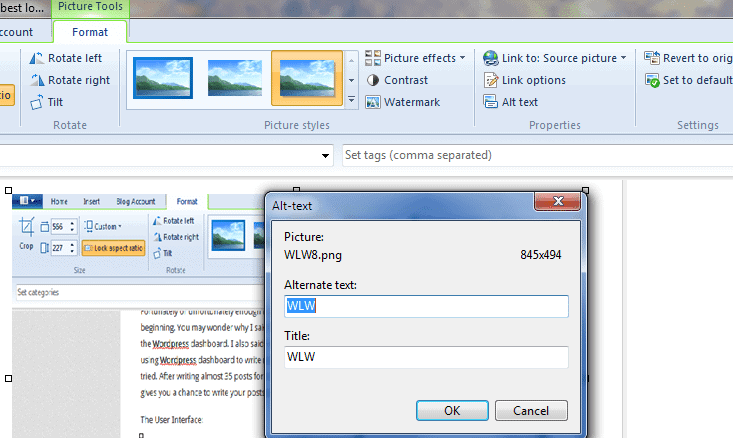
After this, you need to enter ‘Tags’ for you post. Just type in the tags and select the category under which you want to publish your article. Then go back to ‘home’ tab and click ‘Publish’. The spell check’ feature suggests spelling correction and once you are through that, you can proceed to publish your best post. Your post will be live within a minute!
Download Windows Live Writer by following the link below and start creating awesome posts!

let me quickly ask you I have two doubts I used this for my two posts before reading this article. But now fount and ask you my doubts.
1. How to set Permanent link to the post ( I mean how to edit the post link)
2. How to insert my add code in windows live writer. As I can do in blgger.com
3. Any plugins are required to do the above two.. help ?
Do you guys have access to English classes from a native speaker?
Windows live writer provides awesome user interface than WordPress. But, i never came to know about these options in WLW.
Thanks for the feedback, Ajay. Now that you know what you can do with WLW, you can give it a try.
i always use this and due to use of it, it makes my post different from others posts.
Yes, Mohit Rajwani, it certainly makes your posts look more attractive than others’ posts.
i was not using this but from next time i will be surely going to use this..thanks
HI, Shubham. You won’t regret if you try it. In fact, you will love it as you can do that without having to bother about logging into your site admin area. Just type in the content as you do in an Ms Word document. It’s that easy! Don’t forget to write your feedback after using WLW.